


Description
Download ScreenShooter – Free, Secure Screenshot Tool for Windows, Mac, Android & iOS
Why ScreenShooter Stands Out Among Free Screenshot Tools
In today’s digital world, capturing what you see on your screen is more than just a convenience—it’s a necessity. Whether you're sharing a bug report, documenting a tutorial, or saving a memorable moment from a video, a reliable screenshot tool is essential. Enter ScreenShooter, a lightweight yet powerful application designed to simplify screen capture across multiple platforms. Unlike many bloated software solutions, ScreenShooter focuses on speed, simplicity, and security, making it ideal for both beginners and experienced users.
One of the standout features of ScreenShooter is its minimal learning curve. Once installed, the interface is clean and intuitive, allowing you to capture any portion of your screen with just a single click. No complex settings, no confusing menus—just straightforward functionality. This makes it perfect for users who need to take quick screenshots without interrupting their workflow. Whether you're working on a Windows PC, Mac, Android device, or iOS tablet, ScreenShooter delivers consistent performance across all operating systems.
Moreover, the app is completely free to download and use, with no hidden fees or subscription traps. It doesn’t bombard you with ads or collect unnecessary personal data, ensuring a secure and private experience. The developers have clearly prioritized user trust and satisfaction. With regular updates, ScreenShooter continues to improve, fixing bugs and enhancing compatibility with newer OS versions. If you're looking for a dependable, no-frills screenshot tool that works seamlessly on your desktop or mobile device, ScreenShooter is a top contender worth trying today.
Powerful Features That Enhance Your Screenshot Experience
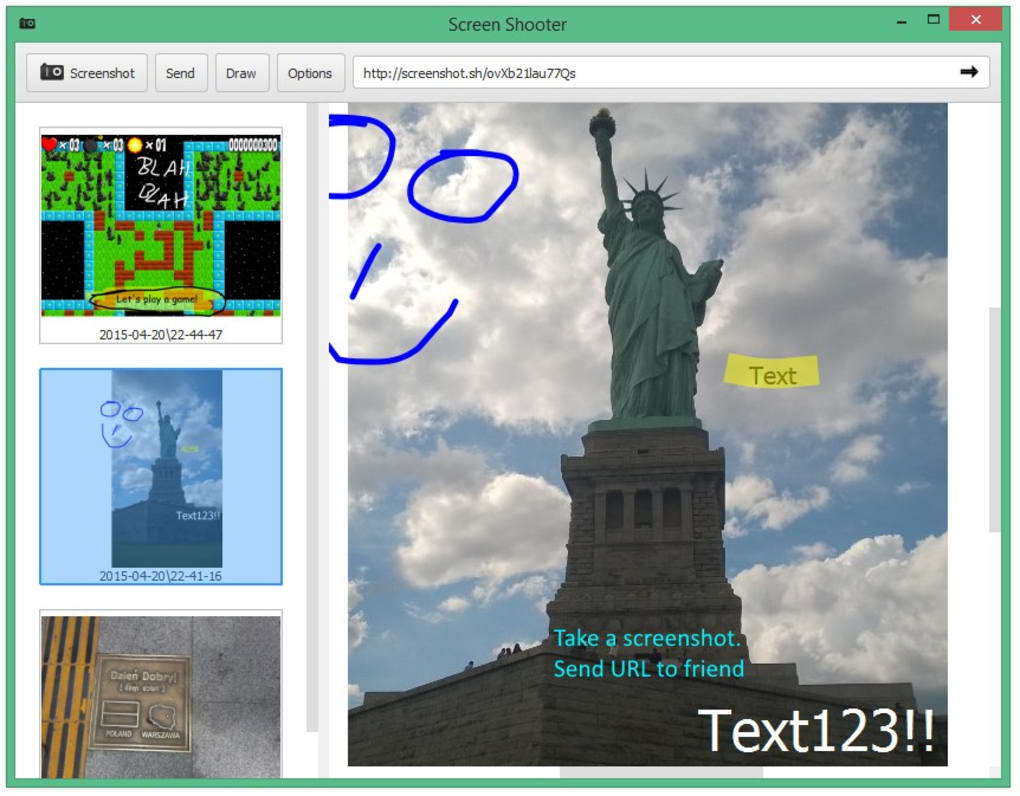
ScreenShooter isn’t just about capturing images—it’s about empowering users with tools that make sharing and editing effortless. The app comes packed with a suite of features that go beyond basic screen capture, giving you full control over your visual content. One of the most useful additions is the built-in image editing suite. After capturing your screen, you can immediately annotate your screenshot using a variety of tools: pens, highlighters, text boxes, arrows, pins, and geometric shapes. These tools are simple but effective, allowing you to emphasize key details or draw attention to specific areas of your image.
For web developers and designers, the color picker is a game-changer. It lets you click on any pixel in your screenshot to retrieve its exact RGB or HEX code—perfect for matching UI elements or ensuring visual consistency across projects. While the editing options are not as advanced as those found in full-fledged graphic editors like Photoshop, they’re more than sufficient for quick annotations and basic enhancements.
Another major advantage is the instant sharing functionality. Instead of saving your screenshot to your local drive and attaching it to an email or message, ScreenShooter generates a shareable link with a single click. This link can be sent via email, messaging apps, or social media, and recipients can view the image directly in their browser without needing to download anything. This feature is especially valuable for remote teams, educators, and support staff who need to share visual feedback quickly and securely.
Additionally, ScreenShooter supports integration with popular cloud storage services like Google Drive, Dropbox, and OneDrive. By syncing your screenshots folder with your cloud account, you can automatically back up your captures and access them from any device. This seamless workflow ensures your screenshots are always safe and accessible, even if your device is lost or damaged.
How to Install and Use ScreenShooter Across Devices
Getting started with ScreenShooter is a breeze, regardless of whether you're using Windows, Mac, Android, or iOS. The installation process is quick and straightforward, requiring no technical expertise. For Windows and Mac users, visit the official website, download the installer, and run it. The setup wizard will guide you through the process in under a minute. Once installed, the app runs in the background and can be launched via a system tray icon or a customizable keyboard shortcut.
On Android and iOS, ScreenShooter is available through the Google Play Store and Apple App Store. Simply search for "ScreenShooter," download the app, and grant the necessary permissions. The mobile version supports full-screen captures, partial selections, and even scrolling screenshots (depending on the device’s capabilities).
To take a screenshot, simply open the app, click the "Capture" button, and select the area of your screen you want to record. You can choose from predefined sizes or drag to select a custom region. After capturing, you’ll be taken to the editing interface, where you can annotate, blur sensitive areas, or add text. Once satisfied, you can save the file locally, upload it to the cloud, or generate a shareable link.
For users who prefer keyboard shortcuts, ScreenShooter supports customizable hotkeys—perfect for power users who want to capture screens without touching the mouse. The app also allows you to set default save locations, auto-delete old screenshots, and enable automatic updates to ensure you’re always using the latest version.
Pros, Cons, and Frequently Asked Questions
Pros of ScreenShooter
- Free to download and use with no hidden costs or ads
- Lightweight and fast—minimal impact on system performance
- Intuitive interface—easy to use for beginners and experts alike
- Instant sharing via link—ideal for remote collaboration
- Cloud integration with Google Drive, Dropbox, and OneDrive
- Basic editing tools including text, arrows, highlights, and color picker
Cons of ScreenShooter
- Limited capture modes—no support for scrolling windows or freehand selection
- Basic editing features—not suitable for advanced image manipulation
- No built-in OCR—cannot extract text from screenshots
- Mobile version lacks some desktop features—limited functionality on iOS/Android
FAQ
- Is ScreenShooter free to download? Yes, ScreenShooter is completely free to download and use. There are no premium tiers, subscriptions, or hidden fees.
- Can I use ScreenShooter on Mac and Windows? Absolutely. ScreenShooter is available for both Windows and Mac operating systems, with native applications optimized for each platform.
- Does ScreenShooter support mobile devices? Yes, ScreenShooter is available on Android and iOS through their respective app stores.
- Can I share screenshots directly from the app? Yes, ScreenShooter generates a shareable link for every screenshot, allowing you to send it instantly via email, messaging apps, or social media.
- Is my data secure when using ScreenShooter? Yes, ScreenShooter does not store your screenshots on its servers. All captures remain on your device unless you choose to upload them to the cloud.
Final Verdict: Is ScreenShooter Worth Your Time?
ScreenShooter delivers a solid, no-nonsense solution for anyone needing to capture, edit, and share screenshots quickly and securely. While it may lack some advanced features found in competitors like Snagit or Lightshot, its simplicity, speed, and free access make it a compelling choice for casual users, students, remote workers, and small teams.
Its ability to generate instant sharing links and integrate with cloud storage adds significant value, especially in collaborative environments. The built-in editing tools, though basic, are sufficient for most everyday tasks. And with regular updates and strong cross-platform support, ScreenShooter continues to evolve.
If you're looking for a lightweight, reliable, and secure screenshot tool that works across Windows, Mac, Android, and iOS, ScreenShooter is definitely worth downloading. Whether you're troubleshooting an issue, creating content, or just saving a moment, this app makes the process seamless and efficient.
Download ScreenShooter today and take control of your screen captures—fast, free, and secure.
Guides & Tutorials for ScreenShooter
How to install ScreenShooter
- Click the Preview / Download button above.
- Once redirected, accept the terms and click Install.
- Wait for the ScreenShooter download to finish on your device.
How to use ScreenShooter
This software is primarily used for its core features described above. Open the app after installation to explore its capabilities.
User Reviews for ScreenShooter 0
No reviews found





